How to Edit AI Generated Images in Canva (Step by Step)
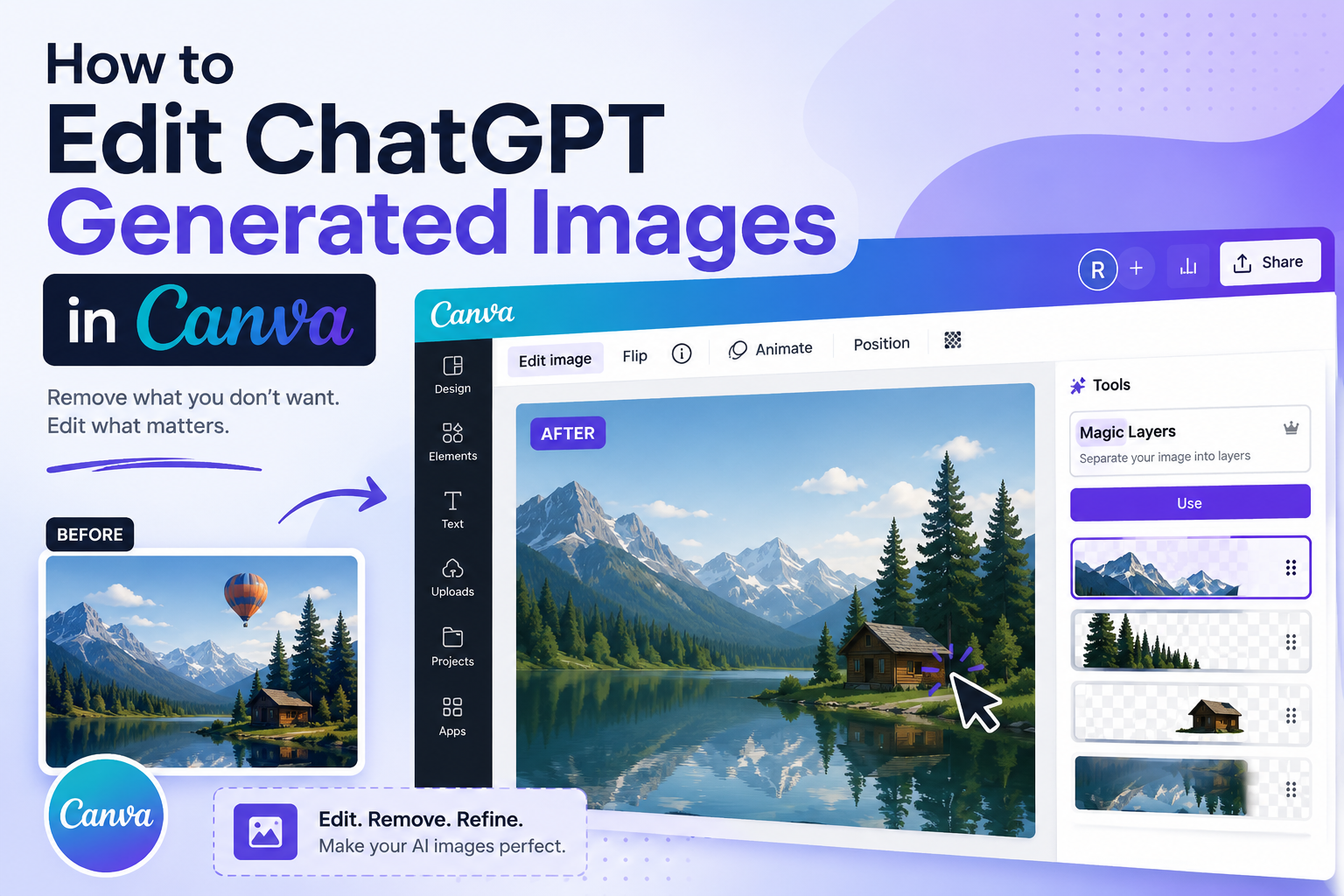
AI image generation tools like ChatGPT are incredibly powerful, but let’s be honest… sometimes the image isn’t quiteright. Maybe there’s an extra object you don’t want, something looks slightly off, or you just want to tweak a small detail. The good news? You don’t need advanced design skills to fix it.
With Canva, you can quickly edit, remove, or adjust elements in your AI-generated images using simple tools. In this guide, we’ll show you exactly how to do it step by step.
Step by Step: Editing an AI Image in Canva
1. Download the image from ChatGPT
Start by downloading your generated image from ChatGPT and saving it somewhere easy to find on your computer.
2. Log in to Canva
Head over to Canva and log in to your account.
3. Create a new design and upload your image
Click on Create a design, then choose Upload.
4. Upload your AI-generated image
Upload the image you downloaded from ChatGPT into Canva.
5. Use the image in a new design
Once uploaded, click on the image and select Use in a new design.
Then choose Custom size.
6. Set your design size
Canva will automatically detect the size of your image.
You can keep the original size, or
Choose a new size depending on where you plan to use the image (social media, website, etc.)
Click Create new design.
7. Open the editing tools
Click on the image inside your design.
Then select Edit in the top toolbar.
8. Use Magic Layers
Under the Tools section, select Magic Layers.
Give Canva a moment to process your image.
9. Edit individual elements
Once processed, your image will be broken into separate layers.
Now you can:
Remove unwanted objects
Adjust specific elements
Move parts of the image
Refine details without affecting the whole image
Why This Matters
AI-generated images are rarely perfect on the first try. Being able to quickly fix small issues can:
Save time regenerating images
Improve the quality of your visuals
Help you create more professional-looking content
Give you more control over your designs
For businesses, this means faster content creation without sacrificing quality.
Pro Tip
If you’re trying to remove something completely, combine Magic Layers with Canva’s Background Remover or Magic Eraser tools for even better results.
Frequently Asked Questions
-
Yes, you can easily edit images created by ChatGPT in Canva by uploading the image and using tools like Magic Layers, Magic Eraser, and Background Remover to adjust or remove elements.
-
Magic Layers is a Canva feature that automatically separates an image into different editable elements. This allows you to individually move, edit, or delete parts of an image instead of editing the entire image at once.
-
To remove unwanted objects, upload your image to Canva, open the editing tools, and use Magic Layers or Magic Eraser. These tools let you select and remove specific parts of the image without affecting the rest.
-
Some advanced features like Magic Layers and Magic Eraser may require a Canva Pro subscription. However, basic editing like cropping, resizing, and simple adjustments can be done with the free version.
-
Editing AI-generated images saves time and gives you more control over the final result. Instead of generating multiple versions, you can quickly fix small issues, improve details, and customize the image to better suit your needs.
Need Help? Contact Razor Web Design
If you're unsure how to use AI effectively in your digital marketing, Razor Web Design is here to help. We’ll show you how to combine AI with real strategy to create content that actually performs and connects with your audience.